-8%
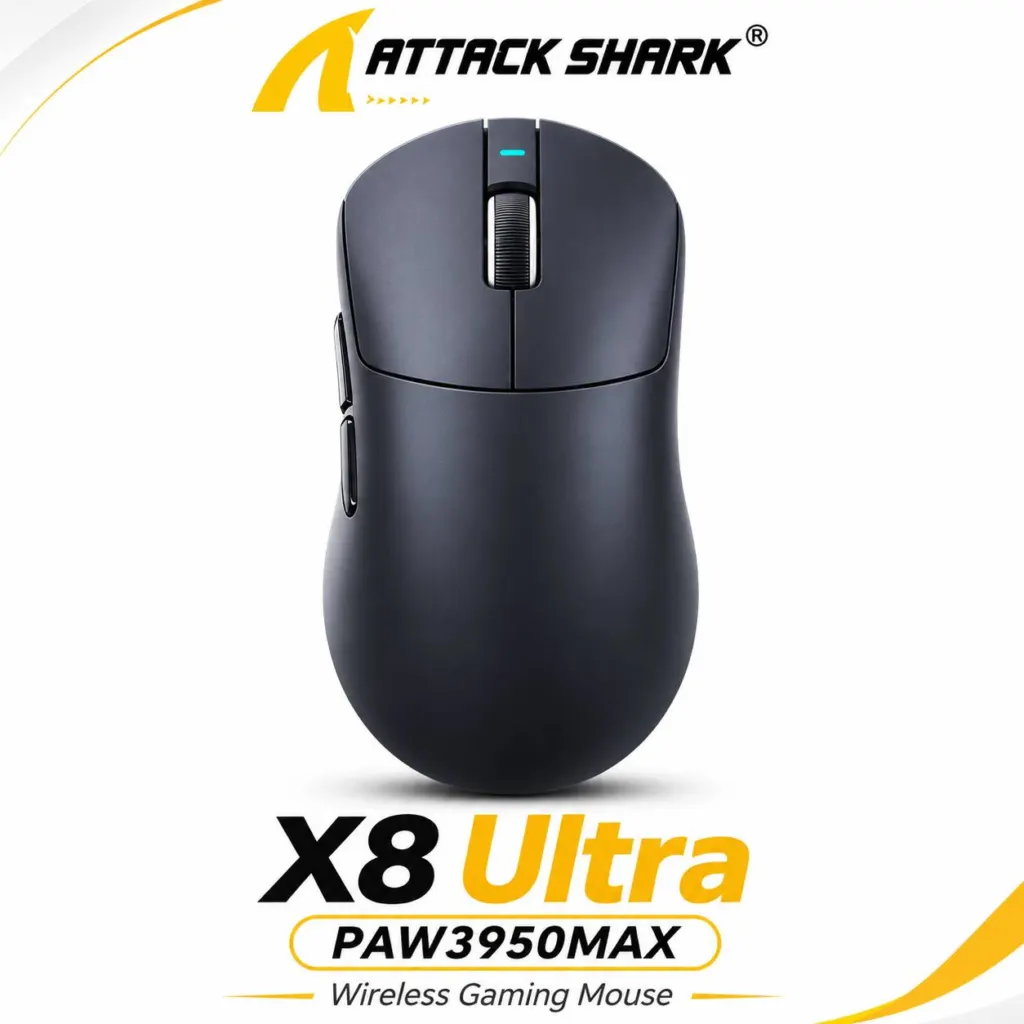
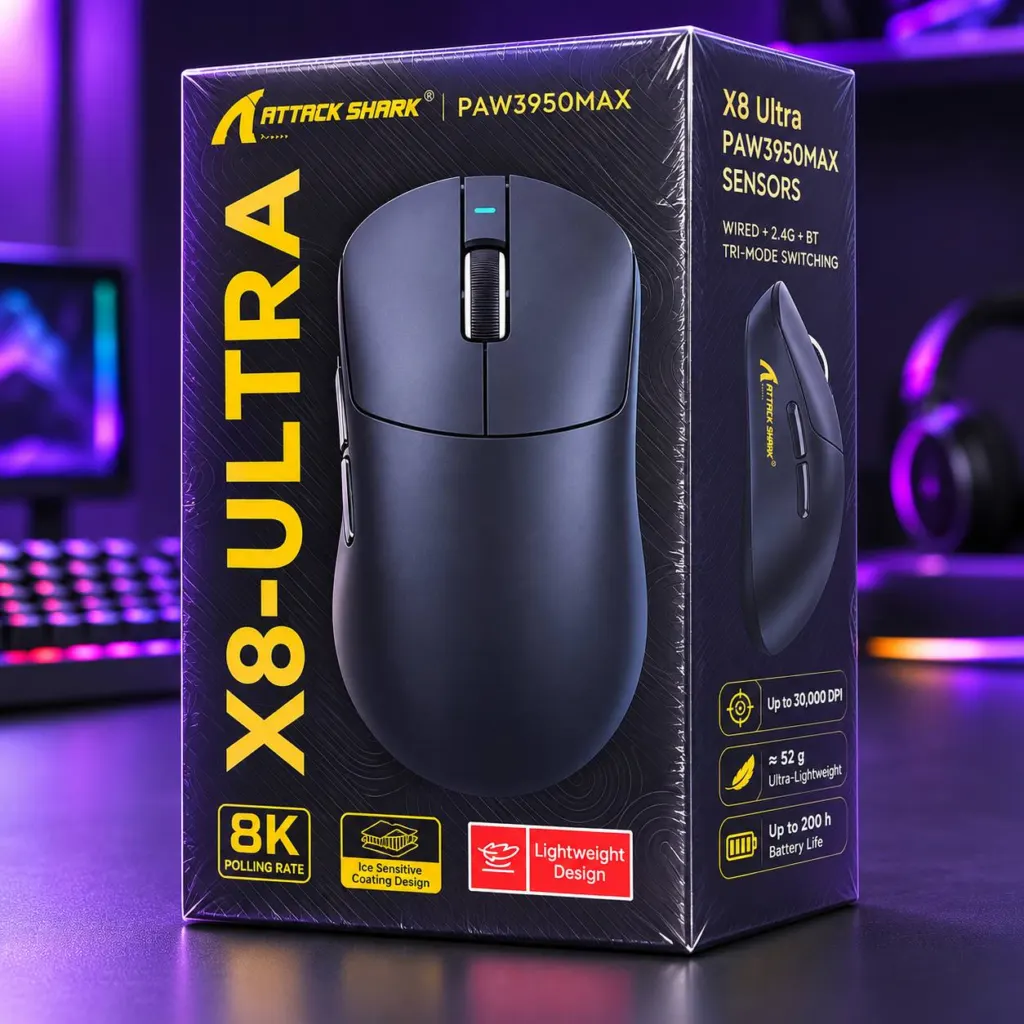
ATTACK SHARK X8 Ultra Tri-Mode Wireless Gaming Mouse - Black
ATTACK SHARK X8 Ultra Tri-Mode Wireless Gaming Mouse - Black - image 2
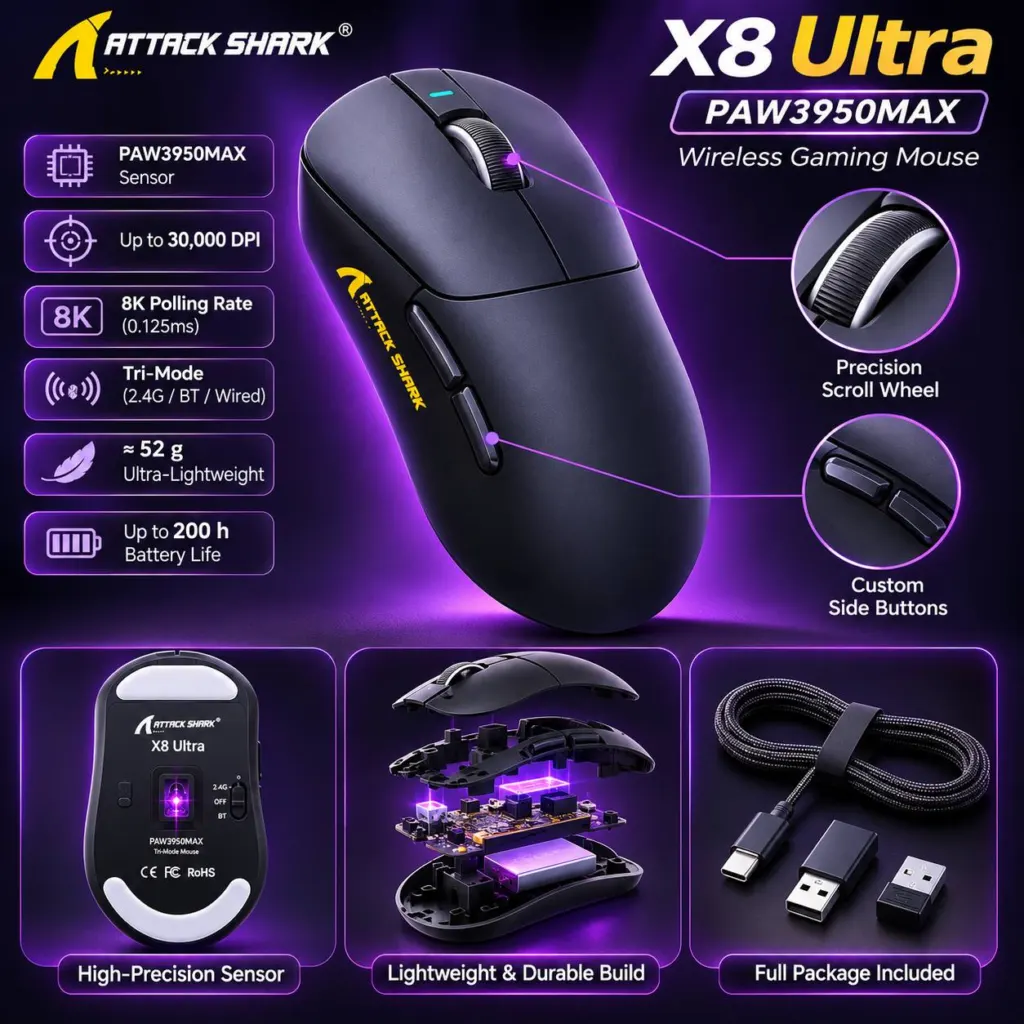
ATTACK SHARK X8 Ultra Tri-Mode Wireless Gaming Mouse - Black - image 3
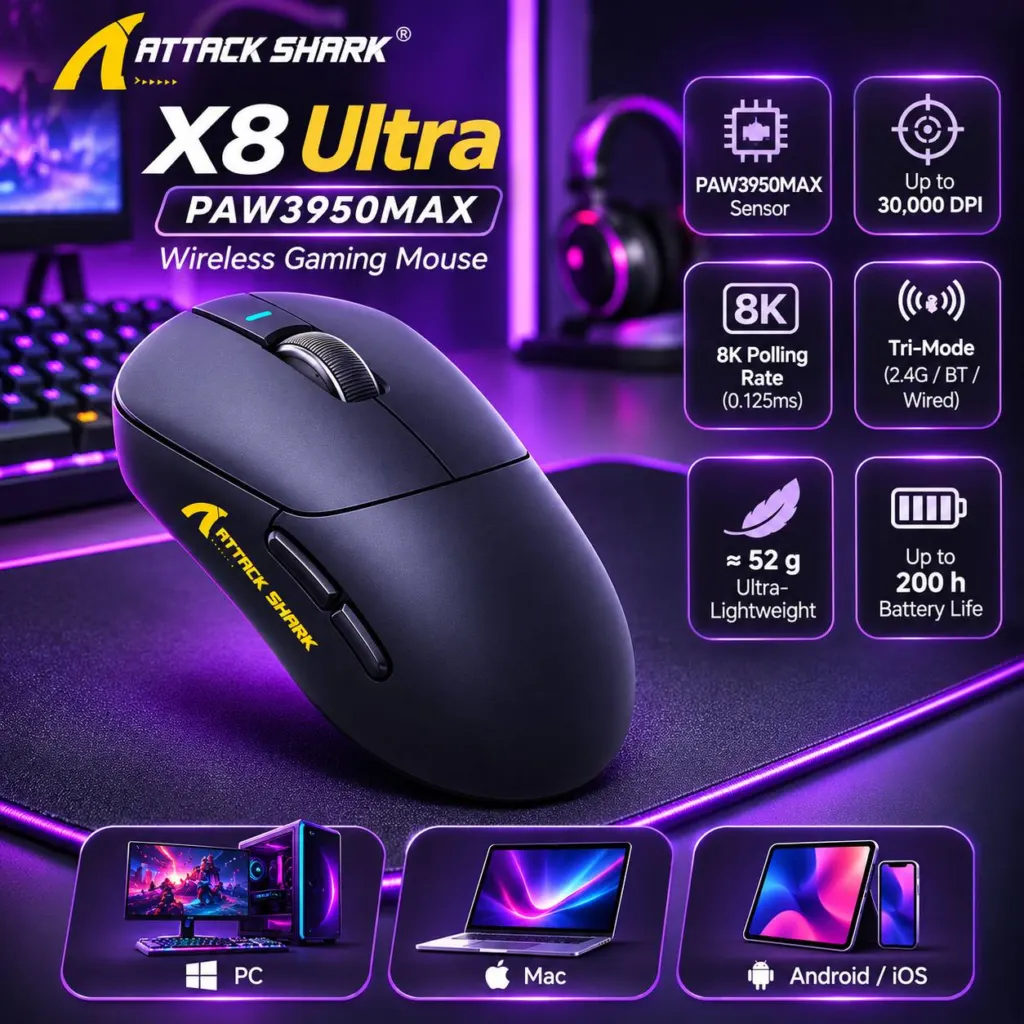
ATTACK SHARK X8 Ultra Tri-Mode Wireless Gaming Mouse - Black - image 4
Attack Shark®

ATTACK SHARK X8 Ultra Tri-Mode Wireless Gaming Mouse – Black

Color: Black, White

The ATTACK SHARK X8 Ultra gaming mouse offers wired, 2.4 GHz and Bluetooth connections, a 42,000 DPI optical sensor and customizable controls.

MAD 689MAD 749-8%
Connect via USB, 2.4 GHz wireless…
PixArt PAW3950MAX optical sensor …
Up to 8,000 Hz polling in 2.4 GHz…
Customize buttons, DPI and pollin…
Nano ice-feel coating and dual-la…
Sensor: PixArt PAW3950MAX optical

50 in stock

In Stock – Ready to ShipDelivery in 24 – 48 Hours

Product Description

The ATTACK SHARK X8 Ultra is a lightweight gaming mouse with three connection modes for gaming and everyday computer use. Its illustrated color is black; the color of the sealed unit has not been confirmed.

Key Features

Connect via USB, 2.4 GHz wireless or Bluetooth.
PixArt PAW3950MAX optical sensor with up to 42,000 DPI.
Up to 8,000 Hz polling in 2.4 GHz mode and 1,000 Hz wired.
Customize buttons, DPI and polling rate with manufacturer software.
Nano ice-feel coating and dual-layer PTFE feet.
What's in the Box

The manufacturer’s manual lists the following items; the contents of the sealed package have not been independently confirmed.

  • Mouse
  • Large 2.4 GHz receiver
  • Cable
  • Instruction manual
  • Anti-slip sticker

Compatibility

The manual lists Windows XP, 7, 8, 10 and 11, macOS, Android and Linux. Your device needs a suitable USB connection or Bluetooth support for the selected mode.

How to Use

  1. For wired use and charging, connect the mouse to a computer with the USB-C cable.
  2. For 2.4 GHz wireless, set the underside switch to 2.4G, connect the receiver and wait for the computer to recognize it.
  3. For Bluetooth, set the underside switch to Bluetooth. Hold the underside DPI button for about three seconds until the pairing light flashes, then select “X8 Ultra” in your device’s Bluetooth settings.
  4. Press the underside DPI button to cycle through sensitivity presets.
  5. Use the X8 Ultra software or web driver linked from the manufacturer’s product page to customize settings.

Frequently Asked Questions

Does it work without a cable?
Yes. It supports 2.4 GHz wireless with its receiver and Bluetooth.

Does it reach 8,000 Hz in every mode?
No. The manual specifies up to 8,000 Hz in 2.4 GHz mode and up to 1,000 Hz wired.

Can I change DPI and button assignments?
Yes. You can cycle DPI presets with the underside button and customize settings using the manufacturer’s software.

Related Products